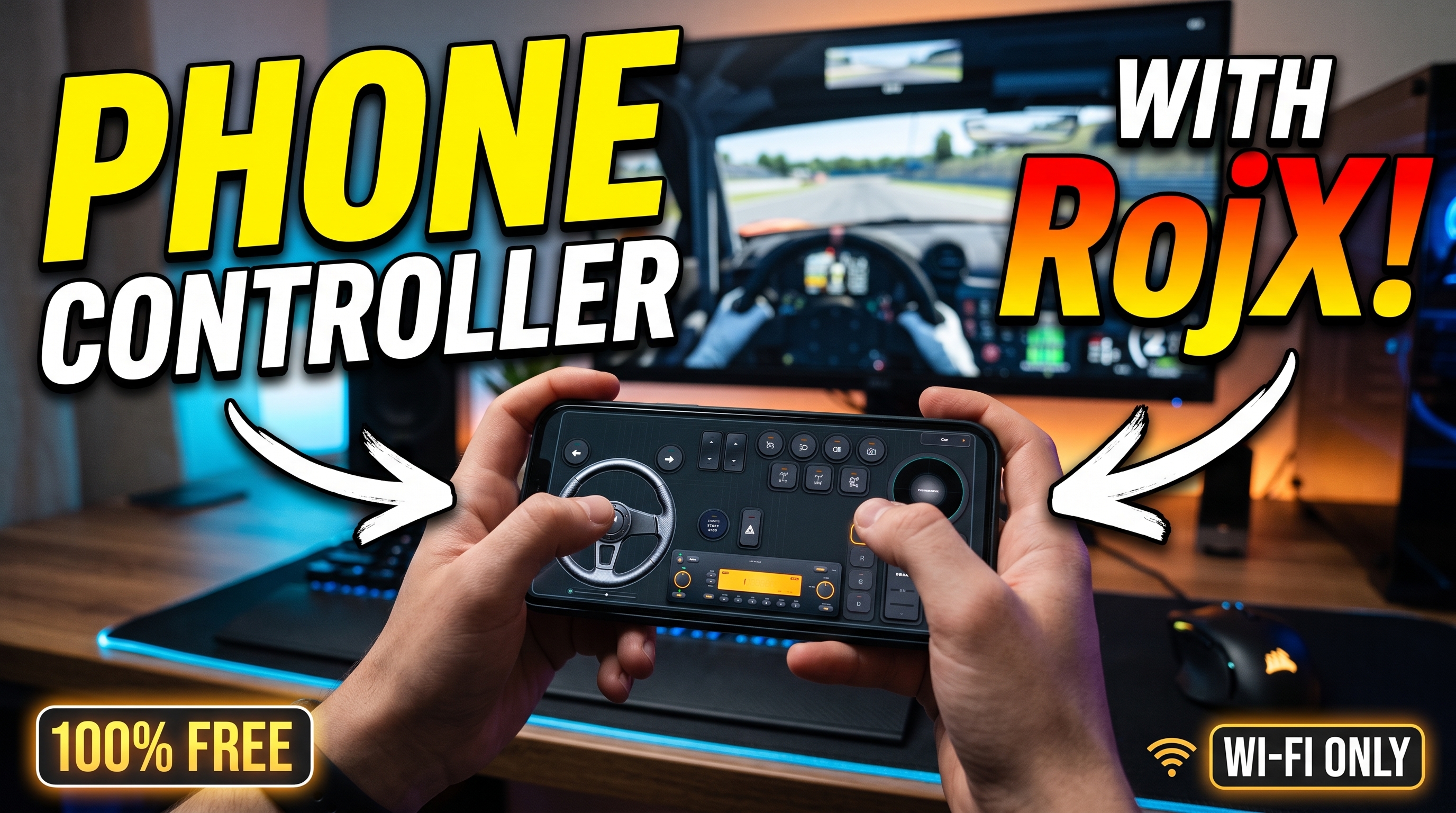



Converting an everyday mobile device into a high-performance input peripheral requires bridging raw hardware sensors with kernel-level virtual gamepads. When deploying a phone controller for precision PC gaming—particularly in demanding physics engines—minimizing telemetry lag and shaping input curves are paramount. Hardware gyroscopes and accelerometers operate at polling frequencies exceeding 100Hz, but translating that raw rotational data into a smooth, 900-degree steering sweep without perceptible input lag demands optimized network streaming and advanced software abstraction.
RojX achieves this by combining high-speed local UDP streaming (operating at a blistering 3ms to 8ms latency) or direct USB tethering with the ViGEmBus driver. This setup tricks Windows 10 and 11 into recognizing your mobile device as a native Microsoft Xbox 360 controller. Whether you are navigating technical hill climbs in BeamNG.drive Physics & Steering Guide or managing heavy freight loads detailed in our Euro Truck Simulator 2 Setup Guide, mastering the calibration pipeline transforms your handheld device into a legitimate force-feedback-emulating virtual wheel.
#Establishing Zero-Latency Connection: USB vs. 5GHz Wi-Fi
Before diving into sensitivity curves, you must secure an uncompromised data pipeline between your mobile operating system and the Download Free RojX Windows Host. Wireless packet jitter is the primary enemy of smooth steering linearity.
- Network Bandwidth Isolation: If operating wirelessly, bind your PC via Ethernet and connect your smartphone exclusively to a 5GHz Wi-Fi band. Avoid congested 2.4GHz channels where microwave interference and Bluetooth packet collisions introduce micro-stutters.
- Direct USB Tethering: For competitive sim racing, enable USB tethering on your Android or iOS device. This bypasses wireless router latency entirely, routing packet data over a direct high-speed serial interface.
- Firewall & Port Configuration: Ensure Windows Defender or third-party antivirus suites permit RojX host communication across local UDP ports. A blocked port will default the connection to fallback TCP protocols, spiking latency past acceptable thresholds.
⚠️ IMPORTANT: Always calibrate your gyroscope on a completely flat, stable surface right after launching the mobile application. Holding the phone in your hand during initialization permanently skews the baseline zero-point, resulting in persistent steering pull.
#Calibrating 900-Degree Gyro Linearity for Precision Cornering
A raw 1:1 gyroscope mapping makes a smartphone virtually unplayable; turning your wrists past 90 degrees would spin a virtual car out of control. To achieve realistic 900-degree steering lock, you must implement non-linear response curves (exponential curves) that keep center inputs sluggishly stable for highway cruising while allowing rapid lock-to-lock rotation when rotated past 45 degrees.
- Deadzone Tuning: Set a hardware deadzone between 1% and 3% to eliminate micro-jitter caused by natural hand tremors.
- Non-Linearity Factor: Configure your curve multiplier between 1.25 and 1.75. This compresses the middle of the axis for high-speed stability while expanding the outer edges for hairpin turns.
- Auto-Centering Spring Physics: Enable software return-to-center spring simulation to mimic the mechanical caster and self-aligning torque of a real steering column.
Gyro Steering Sensitivity & Curve Presets
| Driving Style | Steering Range | Sensitivity % | Non-Linearity | Center Spring Strength |
|---|---|---|---|---|
| Sim Racing / GT Track | 540° | 65% | 1.45 | High (85%) |
| Trucking / Simulation | 900° | 40% | 1.75 | Medium (60%) |
| Arcade / Street Racing | 360° | 85% | 1.10 | Low (30%) |
| Rally / Off-Road | 720° | 75% | 1.55 | Dynamic (75%) |
#Configuring Xbox 360 Controller Bindings and Touch Pedals
Because RojX leverages the ViGEmBus driver, games treat your phone like an authentic Microsoft gamepad. However, touch interfaces lack tactile feedback, meaning layout ergonomics are critical for competitive lap times.
- Virtual Pedal Placement: Position your accelerator and brake pedals on the lower right and left corners of your phone screen. Use split-axis mapping so the app sends independent analog triggers (
Left TriggerandRight Trigger) rather than combined digital inputs. - Clutch and Handbrake Customization: Overlay secondary touch buttons for manual clutch actuation and handbrake turns, scaling button sizes to match your thumb-reach radius.
- Multi-Template Switching: Create distinct profiles inside the RojX mobile companion. Use a dedicated layout for cockpit camera panning, another for drift setups requiring rapid handbrake access, and a clean configuration if you choose to Turn Phone into PC Gamepad.
💡 PRO TIP: Pair your phone's gyro steering with AI Head Tracking Setup utilizing your PC webcam. As you physically turn your head toward an apex, the game dynamically shifts your in-game field of view, bridging the gap between flat-screen monitors and full VR immersion.
#Troubleshooting Common Stumbling Blocks
Even with optimal hardware configurations, minor environmental interference can occasionally disrupt telemetry flow. Use this diagnostic matrix to resolve connectivity and sensor drift issues instantly:
- Symptom: Severe Steering Lag or Input Freezing
- Cause: Wi-Fi channel congestion or background power-saving throttling on mobile.
- Fix: Disable battery optimization for the RojX mobile app and switch to a dedicated 5GHz channel or USB tethering.
- Symptom: Vehicle Pulls Constantly to One Side
- Cause: Gyroscope calibration offset or an uneven resting surface during startup.
- Fix: Recenter your device on a level table and tap the quick-recalibration macro button.
- Symptom: Game Fails to Recognize the Steering Input
- Cause: ViGEmBus driver missing or corrupted after a Windows update.
- Fix: Reinstall the latest RojX host package from rojx.io to force-repair the virtual controller bus driver.
Turn your smartphone into a virtual 900° steering wheel right now
No expensive $300 wheel hardware required. Play Forza, Euro Truck Simulator 2, BeamNG, and Assetto Corsa with butter-smooth gyro steering and zero lag over Wi-Fi.
Point your iPhone or Android camera to install.