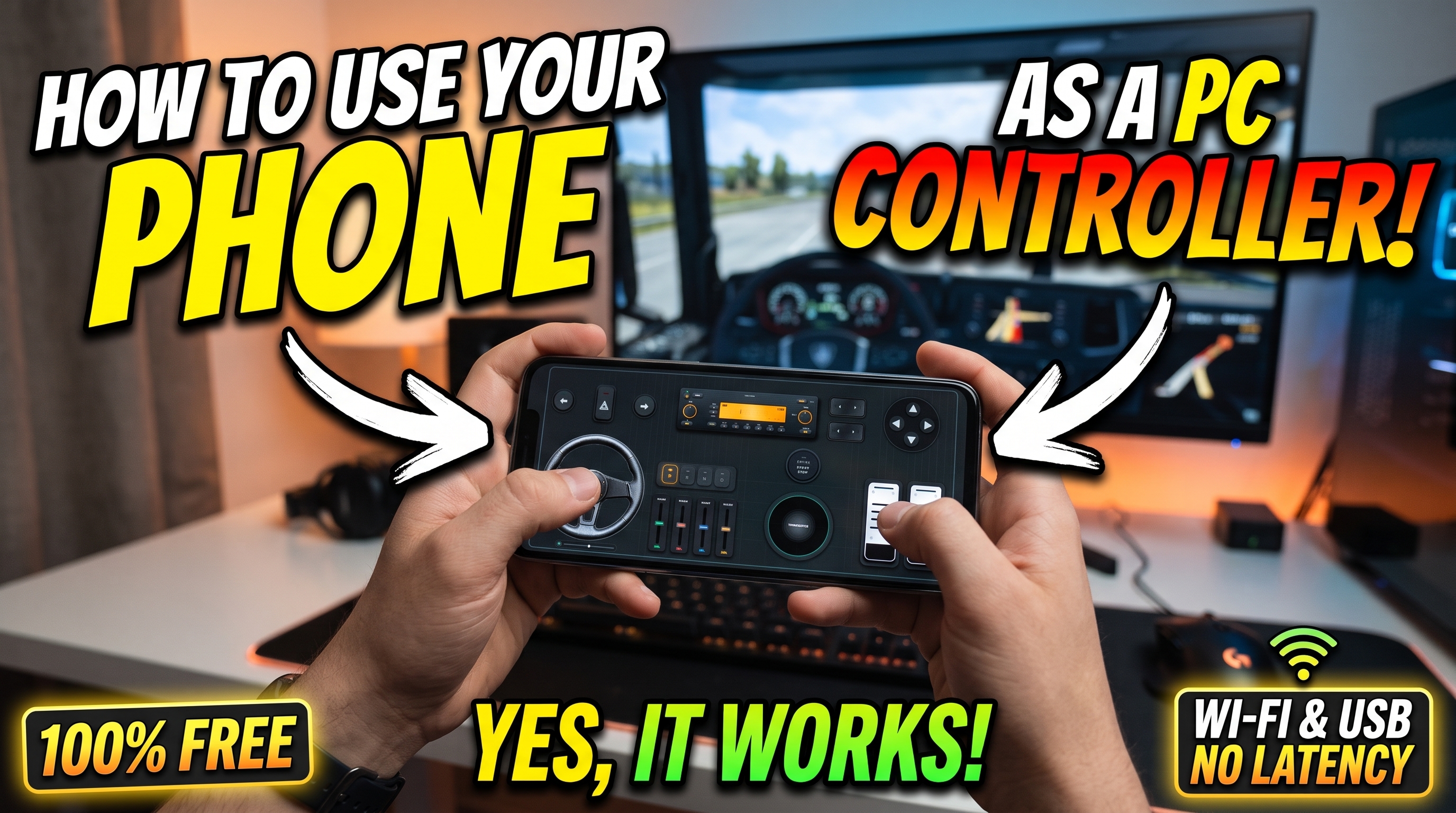



Delivering sub-8ms polling rates and true 900-degree steering fidelity from an everyday iOS or Android device requires bridging mobile sensor hardware directly with Windows kernel-level gamepad emulation. When you configure your smartphone to act as an advanced game controller via RojX, you are not simply mapping basic keystrokes; you are streaming high-frequency IMU (Inertial Measurement Unit) telemetry over local UDP packets and translating those values into precise DirectX axes. If you are looking to turn your mobile device into a versatile gamepad, you can easily turn your phone into a PC gaming controller within minutes.
Establishing Ultra-Low Latency: 5GHz Wi-Fi
Input lag is the primary enemy of competitive sim racing and precise third-person driving. Standard home networks running on congested 2.4GHz Wi-Fi channels introduce packet jitter and variable latency spikes exceeding 40ms, rendering proportional steering impossible.
To achieve elite performance matching dedicated hardware, deploy one of two connection topologies using the free RojX Windows Host:
- Direct USB Tethering: Enable USB debugging or network tethering on your mobile device. This routes the RojX telemetry stream over a physical copper connection, dropping round-trip latency to a blistering 2ms - 4ms while simultaneously keeping your battery fully charged.
- Isolated 5GHz Wi-Fi Subnet: Connect both your gaming rig (preferably via Ethernet) and your mobile device to an uncontroverted 5GHz Wi-Fi access point. Ensure AP isolation is disabled on your router to allow direct peer-to-peer UDP broadcast packets.
⚠️ IMPORTANT: Windows Defender Firewall or third-party antivirus suites frequently block incoming UDP packets on local ports. When launching the RojX Windows host receiver for the first time, ensure you allow network access across private subnets to prevent dropped frames and frozen controller states.
Calibrating 900-Degree Gyro Linearity for Precision Cornering
Raw gyroscope output measures angular velocity in degrees per second. To turn this raw data into a stable, progressive 900-degree virtual steering wheel, you must configure deadzones and non-linear response curves. Without curve tuning, small micro-adjustments on straightaways will feel hyper-sensitive, while hairpin turns will lack the necessary mechanical throw.
Access the RojX calibration menu to adjust your steering parameters:
- Deadzone Threshold: Set a tight 1% to 2% deadzone to eliminate natural human hand tremor when holding the phone steady on straightaways.
- Non-Linearity Curve (Gamma): Apply a curve factor of 1.25 to 1.50. This compresses sensitivity near the center axis for stable high-speed highway cruising, while expanding the outer throw limits to give you fine-grained control at full lock.
- Auto-Centering Spring Physics: Emulate real mechanical caster trail by enabling software auto-centering. This ensures the virtual wheel snaps back to zero when you release tilt pressure, replicating the self-aligning torque of a physical steering column.
| Driving Style | Steering Range | Sensitivity % | Non-Linearity | Center Spring Strength |
|---|---|---|---|---|
| Arcade Casual / Street | 360° | 100% | 1.00 (Linear) | 30% |
| Sim Racing GT / Track | 540° | 85% | 1.20 | 60% |
| Hardcore Rally / Off-Road | 900° | 75% | 1.45 | 80% |
| Heavy Truck & Bus Sim | 900° | 65% | 1.60 | 95% |
For specific simulation titles, proper tuning translates directly to lap time improvements. If you enjoy commercial vehicle hauling, review our comprehensive Euro Truck Simulator 2 Setup Guide for optimized axis mappings.
Emulating Xbox 360 Architecture via ViGEmBus Driver
Windows operating systems natively understand DirectInput and XInput devices. RojX hooks directly into this architecture by leveraging the industry-standard ViGEmBus virtual bus driver. Once installed on your Windows 10 or Windows 11 PC, RojX dynamically spawns a virtual Microsoft Xbox 360 Controller device in the Windows Game Controllers control panel.joy.cpl).
This architecture guarantees absolute compatibility with modern blockbusters and physics sandboxes. For instance, when configuring physics-heavy sandboxes, following the BeamNG.drive Physics & Steering Guide allows you to map custom force feedback triggers and clutch bite points seamlessly.
Configuring Advanced Touch Layouts and AI Head Tracking
Steering is only half the battle; competitive driving requires aggressive trail-braking, clutch management, and gear shifting. RojX allows you to overlay fully customizable touch button zones directly onto your smartphone screen alongside your active tilt steering interface.
- Virtual Pedals: Configure the lower left and right halves of your smartphone screen as progressive analog triggers for acceleration and braking. Multi-touch handling ensures you can hold a steady 50% throttle while modulating your brake pressure entering an apex.
- Haptic Feedback Triggers: Enable device vibration on touch registration to receive tactile confirmation when shifting gears via on-screen paddle buttons.
- AI Webcam Head Tracking: Elevate your situational awareness by combining your steering setup with AI Head Tracking Setup, utilizing your PC webcam to dynamically track your gaze and adjust in-game camera angles as you look toward clipping points.
💡 PRO TIP: If you notice your virtual steering wheel slowly drifting to one side during an endurance race, your phone's internal accelerometer is suffering from thermal or bias drift. Rest the phone on a completely flat surface for two seconds and tap the quick-recenter hotkey bound to one of your custom touch buttons to instantly re-zero the telemetry baseline without pausing your game.
Turn your smartphone into a virtual 900° steering wheel right now
No expensive $300 wheel hardware required. Play Forza, Euro Truck Simulator 2, BeamNG, and Assetto Corsa with butter-smooth gyro steering and zero lag over Wi-Fi.
Point your iPhone or Android camera to install.