
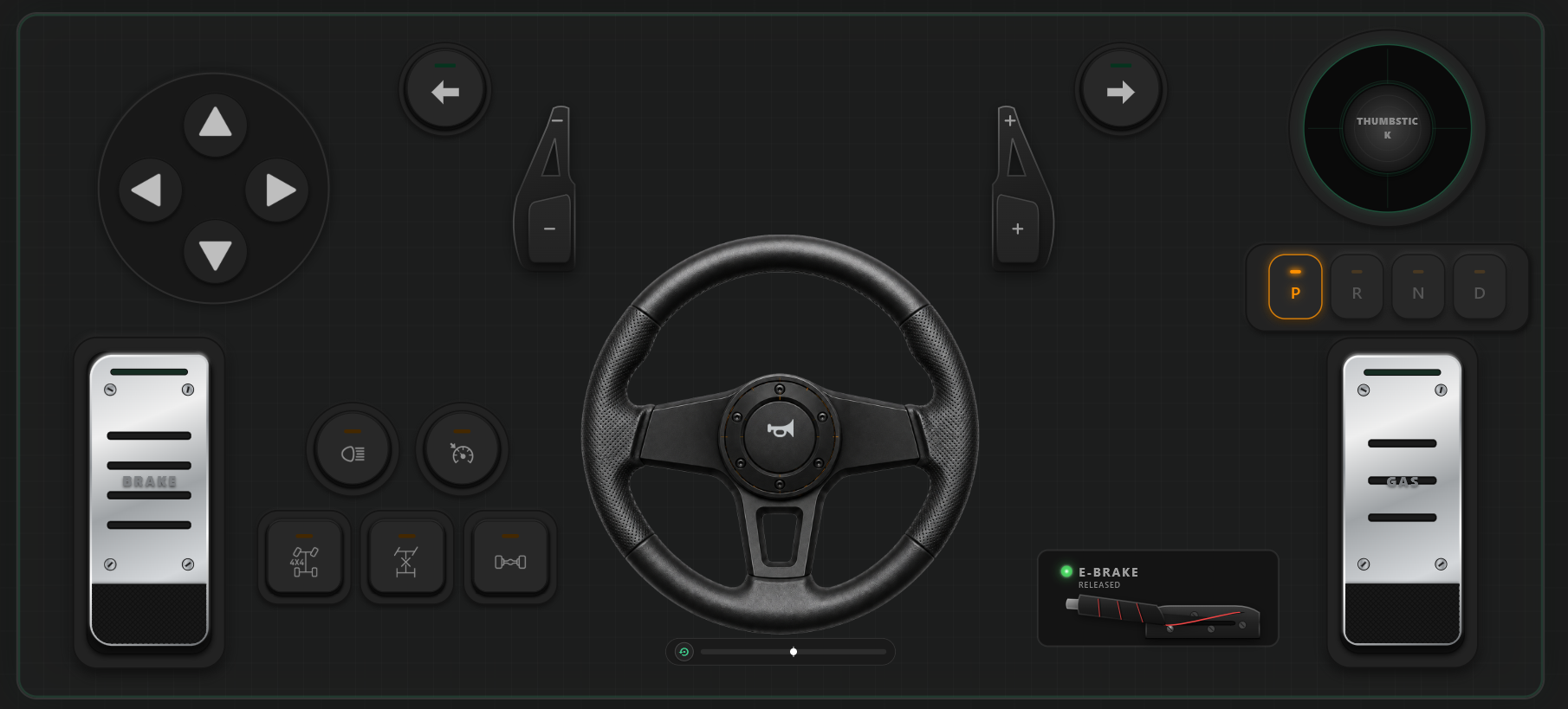



How to Use a Virtual Steering Controller on PC: Turn Your Phone into a 900° Racing Wheel
Sim racing is one of the most immersive hobbies in PC gaming, but entering the ecosystem is notoriously expensive. Entry-level hardware kits like the Logitech G29, G923, or Thrustmaster T300RS routinely demand between $250 and $450—an intimidating barrier to entry if you simply want to enjoy cruising on Euro Truck Simulator 2, testing physics in BeamNG.drive, or carving apexes in Assetto Corsa.
On the other hand, steering with a keyboard's binary digital keys ($0$ or $100%$) or flicking an analog stick on a gamepad never captures the genuine feeling of trail braking and smooth corner entry.
Fortunately, there is a superior middle ground: using a virtual steering controller on PC. Modern smartphones pack high-frequency internal inertial measurement units (IMUs)—including advanced 6-axis gyroscopes and accelerometers—capable of sampling rotational motion at hundreds of Hertz. By pairing your mobile device with RojX, you can convert your phone into an ultra-low-latency 900° virtual steering wheel and native Xbox 360 controller for Windows.
#Hardware Comparison: Keyboard vs. Physical Wheel vs. RojX Virtual Wheel
| Metric / Feature | Keyboard & Mouse | Physical Wheel (e.g., G29) | RojX Virtual Steering Wheel |
|---|---|---|---|
| Hardware Cost | $0 (Already owned) | $280 – $400+ | $0 (Uses existing phone) |
| Steering Precision | Binary (Steer / Don't Steer) | 900° Analog Rotation | Up to 900° Gyro Analog Tracking |
| Pedal Modulation | None (100% On/Off) | Mechanical Pedals | Progressive Touchscreen Sliders |
| Desk Clutter | Minimal | Heavy clamps, power bricks, cables | Zero desk footprint |
| Input Latency | Instant | 1ms – 3ms (USB) | 3ms – 8ms (Wi-Fi) / <2ms (USB) |
| Storage / Portability | N/A | Bulky & heavy | Fits in your pocket |
#Prerequisites
Before starting your setup, ensure you have:
- A Windows PC running Windows 10 (64-bit) or Windows 11.
- A Smartphone: Any modern iPhone (iOS 14+) or Android device (Android 8.0+) equipped with a built-in gyroscope.
- Local Network Connectivity: A home Wi-Fi network (5GHz band recommended for lowest jitter) or a standard USB charging/data cable.
#Step 1: Installing the RojX PC Receiver & Mobile App
To make your PC accept virtual gyroscope commands as native analog steering inputs, RojX uses a dual-engine architecture: a lightweight background Windows host service and the mobile cockpit application.
- Navigate to rojx.io on your PC and download the free RojX Windows Receiver installer.
- Run the installer. It will configure the virtual Xbox bus driver (
ViGEmBus), which guarantees that Windows and your PC games recognize the device as a standard Microsoft Xbox 360 controller. - Launch the RojX Windows application and ensure the status reflects "Listening for Connection".
- On your smartphone, install RojX from the [iOS App Store] or [Google Play Store].
#Step 2: Connecting and Calibrating the 900° Virtual Wheel
Once both software components are installed, establish your low-latency wireless or tethered communication pipe:
[ Smartphone Gyroscope ]
       │  (High-Speed UDP / USB Tether: ~3ms)
       ▼
[ RojX Windows Receiver ]
       │  (ViGEmBus Virtual Driver)
       ▼
[ Windows 10/11 OS: Native Xbox 360 Gamepad ]
       │
       ▼
[ Racing Game: Forza / Assetto Corsa / BeamNG ]- Connect to the Host: Open the RojX mobile app while connected to the same Wi-Fi network as your PC. The app will auto-discover your host desktop. Tap Connect. (Tip: For tournament-grade zero-latency stability, enable USB Tethering on your phone and plug in via USB).
- Select the Racing Layout: In the RojX layout picker, select the "Virtual Steering Wheel (900°)" profile. This layout assigns the phone's tilt axis to the Left Thumbstick X-axis and exposes progressive linear touch pedals for throttle (Right Trigger / RT) and brake/reverse (Left Trigger / LT).
- Calibrate Center Position: Place your phone in a comfortable, horizontal driving position facing your screen and press the Recalibrate Center button. This establishes the zero-degree neutral baseline and eliminates any sensor bias or drift.
- Enable Auto-Centering Spring: In the RojX settings panel, toggle Auto-Centering Spring Physics. This algorithm applies a virtual tension curve that dynamically returns your steering axis to dead-center as you relax your wrists, mimicking the mechanical return of a rack-and-pinion steering column.
#Step 3: In-Game Setup & Control Bindings
Because RojX supplies a hardware-level Xbox 360 emulation layer, you do not need complex third-party joy-to-key software. Your racing titles will identify your phone as an official gamepad.
- Launch your racing simulator of choice (e.g., Forza Horizon, Assetto Corsa, BeamNG.drive, or F1 24).
- Navigate to Options > Controls / Settings > Controller / Gamepad.
- Verify your axis bindings:
- Steering Axis: Left Stick Horizontal (mapped to Phone Tilt / Gyro).
- Accelerate / Throttle: Right Trigger (RT slider).
- Brake / Reverse: Left Trigger (LT slider).
- Handbrake: A Button or Right Bumper (RB).
- Shift Up / Shift Down: Dedicated on-screen tactile paddle switches.
#Recommended Sensitivity & Linearity Settings
To bridge the gap between high-speed simulation physics and physical gyroscope control, configure your game's steering curve values according to this calibrated baseline:
| Setting Parameter | Recommended Value | Engineering Purpose |
|---|---|---|
| Steering Deadzone (Inside) | 0% – 2% | Eliminates unwanted micro-jitter while maximizing center-line responsiveness. |
| Steering Deadzone (Outside) | 98% – 100% | Ensures you achieve complete lock-to-lock steering rotation. |
| Steering Linearity / Gamma | 1.0 – 1.2 | A linear 1.0 ratio offers authentic 1:1 wheel movement; 1.2 softens highway twitchiness. |
| Steering Sensitivity | 70% – 85% | Prevents over-rotation during high-speed highway maneuvers. |
| Steering Filter / Smoothing | 5% – 10% | Smooths out raw sensor micro-fluctuations without introducing perceptible lag. |
#Pro Tips for Zero-Latency Virtual Steering
- Prefer 5GHz Wi-Fi over 2.4GHz: 2.4GHz Wi-Fi is crowded with Bluetooth interference and microwave signals, which can cause erratic packet delivery spikes. Operating over an isolated 5GHz Wi-Fi channel locks RojX's packet delivery speed strictly between 3ms and 8ms.
- Use Direct USB Tethering for Zero Packet Loss: If your PC lacks an optimized Wi-Fi card, enable USB data tethering in your phone's network settings. RojX will route UDP data over local USB serial emulation, dropping ping times to <2ms.
- Lock Screen Orientation: Ensure your device's native Portrait Orientation Lock is disabled so the application maintains strict landscape axis locking.
- Integrate AI Head Tracking: Take your immersion a step further by enabling RojX AI Head Tracking. By using your webcam to track real-time head pose translation, your in-game cockpit camera pans into your turns while your hands remain focused on the virtual wheel.
#Next Steps: Upgrade Your Sim Rig for Free
Building an authentic PC racing setup does not require hundreds of dollars in mechanical hardware. By harnessing the precision IMU sensors already inside your pocket, a modern smartphone operating as a virtual steering controller on PC bridges the gap between competitive precision and true affordability.
Ready to hit the track? Visit rojx.io to download the free Windows receiver and turn your phone into a high-performance 900° steering wheel today.
Turn your smartphone into a virtual 900° steering wheel right now
No expensive $300 wheel hardware required. Play Forza, Euro Truck Simulator 2, BeamNG, and Assetto Corsa with butter-smooth gyro steering and zero lag over Wi-Fi.
Point your iPhone or Android camera to install.