


Turn Your Smartphone Into a High-Precision Phone Controller and 900° Steering Wheel
If you have ever tried to play a racing simulator like Assetto Corsa, Forza Horizon 5, or Euro Truck Simulator 2 using a keyboard, you know the frustration. Tapping the 'A' and 'D' keys to steer results in jerky, binary movements that make smooth cornering impossible. For years, the only solution was to drop $300 to $600 on a physical racing wheel like the Logitech G29 or a Thrustmaster T300RS.
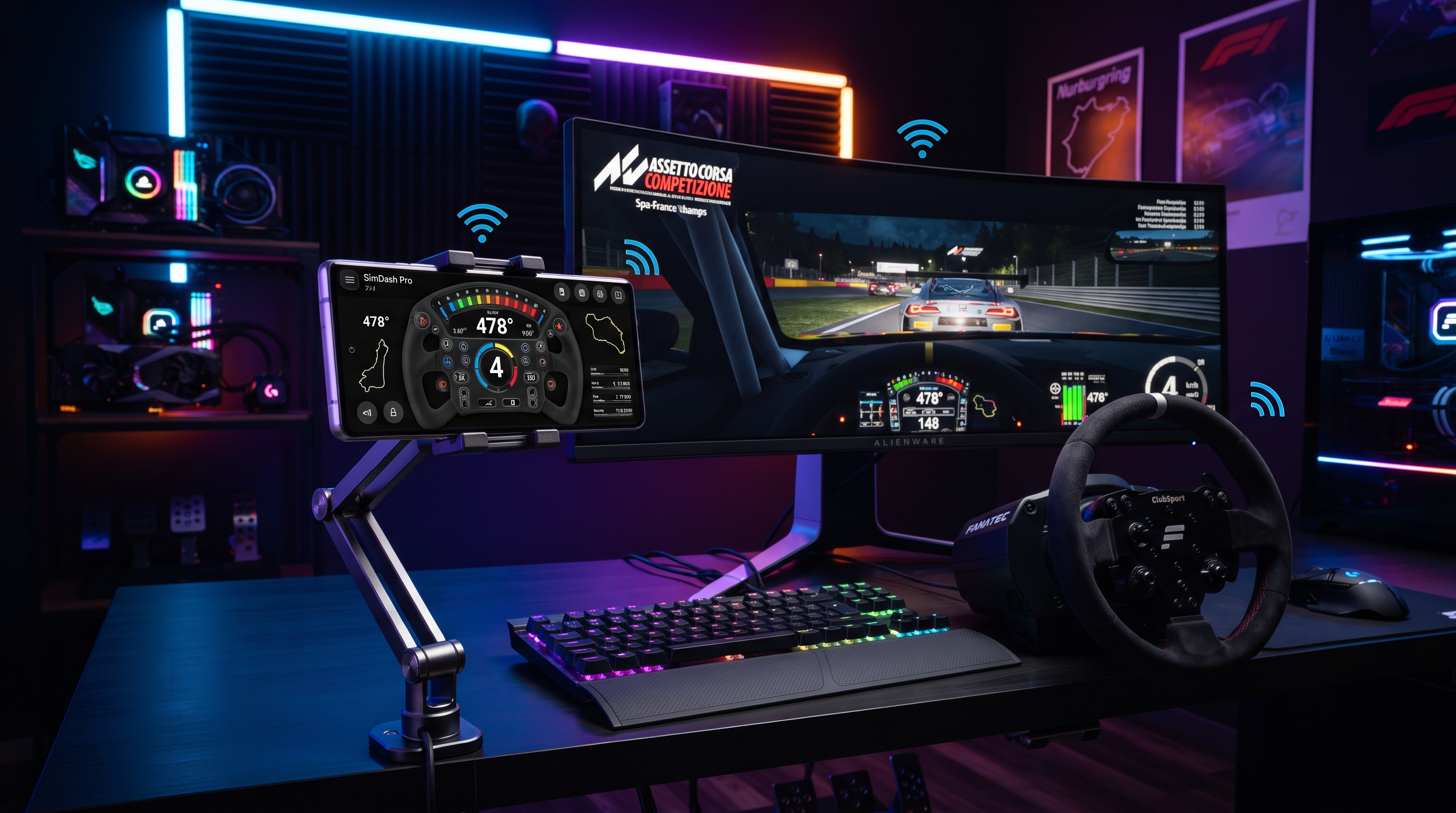
But there is a better way. Modern smartphones are packed with sophisticated IMU (Inertial Measurement Unit) sensors and high-frequency gyroscopes. At RojX, we have engineered a way to harness that hardware, turning your device into a professional-grade phone controller and a 900-degree virtual steering wheel with ultra-low latency.
#Why Use Your Phone as a Controller?
Before we dive into the technical setup, let's look at how a smartphone setup compares to traditional input methods.
Comparison: Keyboard vs. Hardware Wheel vs. RojX
| Feature | Keyboard & Mouse | Physical Racing Wheel | RojX Phone Controller |
|---|---|---|---|
| Input Type | Binary (On/Off) | Analog (High Precision) | Analog (Gyro Precision) |
| Steering Angle | N/A | 900° - 1080° | 900° Virtual Rotation |
| Cost | $0 (Included) | $300 - $1,000+ | Free / Low Cost |
| Space Required | None | Large Desk Space | Pocket-sized |
| Latency | 1ms | 1ms - 5ms | 3ms - 8ms (UDP/USB) |
| Compatibility | Universal | Varies by Driver | Universal (Xbox 360 Emulation) |
#Prerequisites for Setup
To begin using your device as a high-performance phone controller, ensure you have the following:
- A Windows PC: Running Windows 10 or Windows 11.
- A Smartphone: Any modern iOS or Android device with a functioning gyroscope.
- Local Network: A 5GHz Wi-Fi router is recommended for the best wireless experience, or a USB cable for a tethered connection.
#Step 1: Installing the RojX PC Receiver & Mobile App
First, you need the software that bridges the gap between your mobile sensors and your Windows OS.
- Download the Windows Host: Visit rojx.io and download the free RojX Receiver. This lightweight background application handles the Xbox 360 controller emulation.
- Install the App: Search for "RojX" on the iOS App Store or Google Play Store.
- Permissions: When prompted on Windows, allow RojX through your Firewall. This is necessary for the high-speed UDP packets (the data that tells your PC how you are moving the phone) to pass through without delay.
#Step 2: Connecting and Calibrating the 900° Virtual Wheel
Once the software is installed, it is time to sync your devices.
- Launch the PC Receiver: Open the RojX app on your Windows machine. It will display your local IP address.
- Connect the App: Open the RojX app on your phone. Ensure you are on the same Wi-Fi network. The app should auto-detect your PC, or you can manually enter the IP address shown on your monitor.
- Select Steering Mode: Choose the "900° Steering Wheel" template. This mode utilizes the gyroscope to track your phone's rotation.
- Calibration: Lay your phone flat on a level surface and press the 'Calibrate' button. This sets the 'zero point' for your steering. RojX features an auto-centering spring physics engine that simulates the feel of a real wheel returning to center.
#Step 3: In-Game Setup & Control Bindings
Because RojX emulates a native Microsoft Xbox 360 controller, your PC sees your phone as a standard gamepad. However, for racing games, you want to ensure the steering axis is mapped correctly.
- Open Your Game: Launch your simulator of choice (e.g., BeamNG.drive).
- Input Settings: Go to the Controls/Input menu. Select 'Steering' and tilt your phone. The game should recognize the 'X-Axis' of the emulated controller.
- Pedal Mapping: Use the virtual pedals on your phone screen to bind 'Throttle' and 'Brake'. RojX allows for customizable layouts, so you can place the clutch or handbrake wherever feels most ergonomic.
Recommended Sensitivity & Linearity Settings
To get the most realistic feel, use these baseline settings in your game's advanced controller menu:
| Setting | Recommended Value | Description |
|---|---|---|
| Steering Deadzone | 0% - 2% | Keeps the center tight and responsive. |
| Steering Linearity | 1.0 (Linear) | Ensures 1:1 movement between phone and game. |
| Steering Sensitivity | 100% | Let the RojX app handle the 900° scaling. |
| Vibration/Force Feedback | Enabled | RojX can trigger haptic feedback on your phone. |
#Pro Tips for Zero-Latency Gameplay
As a lead engineer at RojX, I always recommend these three optimizations for the best phone controller experience:
- Use 5GHz Wi-Fi: 2.4GHz bands are prone to interference from microwaves and Bluetooth. A 5GHz connection ensures your latency stays in the 3ms-5ms range.
- USB Connection: If you are in a crowded Wi-Fi environment (like a dorm), use a USB cable. Enable USB Tethering on your phone to create a wired data path for the controller inputs.
- Phone Mounting: For the ultimate immersion, use a cheap phone mount attached to your desk or a DIY cardboard 'wheel' frame. This provides physical resistance and makes the 900-degree rotation feel incredibly natural.
#Related Guides & Resources
Ready to take your setup further? Check out our specific configuration guides:
- Setting up RojX for Euro Truck Simulator 2
- Advanced BeamNG.drive Gyro Tuning
- Using AI Head Tracking with RojX
- Customizing Your Phone Gamepad Layout
#Conclusion
You don't need a thousand-dollar sim-rig to enjoy the thrill of precision driving. By leveraging the high-speed sensors in your smartphone and the powerful emulation of the RojX software, you can turn your device into the ultimate phone controller. Whether you are drifting in Assetto Corsa or hauling freight in Truck Sim, RojX delivers the 900-degree accuracy you need.
Ready to race? Download the RojX Windows Receiver today and transform your mobile device into a pro-tier gaming peripheral.
Turn your smartphone into a virtual 900° steering wheel right now
No expensive $300 wheel hardware required. Play Forza, Euro Truck Simulator 2, BeamNG, and Assetto Corsa with butter-smooth gyro steering and zero lag over Wi-Fi.
Point your iPhone or Android camera to install.