


The Ultimate Guide to Finding a Sim Wheel Controller for PC (Without Breaking the Bank)
If you love racing simulators like Assetto Corsa, BeamNG.drive, F1 Series, or Euro Truck Simulator 2, you already know that a keyboard and mouse simply cut it. Precision throttle control and smooth steering are mandatory for keeping your car out of the barrier.
However, stepping into the world of sim racing hardware is notoriously expensive. Entry-level physical force-feedback wheels from brands like Logitech or Thrustmaster easily cost between $300 and $400. For casual racers or gamers looking to try out the genre, that's a massive financial barrier.
What if you already own the best possible motion-sensing hardware right in your pocket?
In this comprehensive guide, we'll show you how to use RojX to instantly turn your iOS or Android smartphone into a fully functional, low-latency sim wheel controller for PC, complete with 900-degree rotation, customizable virtual pedals, and native Xbox controller emulation.
#Comparison: Keyboard vs. Physical Wheel vs. RojX Smartphone Setup
| Feature | Keyboard / Mouse | Physical Sim Wheel ($300+) | RojX Mobile Controller | Verdict |
|---|---|---|---|---|
| Cost | Free | High ($300 - $600+) | Free (Optional Pro upgrades) | RojX Wins (Best Value) |
| Steering Angle | Digital (0° or 180°) | 900° to 1080° | Full 900° Gyro Rotation | Tie with Physical Wheels |
| Setup Complexity | None | Desk clamping, power bricks | 2-minute software install | RojX Wins (Most Portable) |
| Input Latency | Instant | Instant | 3ms - 8ms over Local Wi-Fi / USB | Virtually Imperceptible |
| Space Required | None | Dedicated desk / rig space | Just your phone | RojX Wins |
#Prerequisites Before You Begin
Before diving into the setup, make sure you have the following ready:
- A Windows 10 or Windows 11 PC.
- An iOS device (iPhone) or Android smartphone.
- A stable local Wi-Fi network (5GHz recommended for lowest latency) or a USB charging cable for wired connection.
- The free RojX Host Receiver installed on your PC (available at rojx.io).
- The RojX Mobile App downloaded from the Apple App Store or Google Play Store.
#Step 1: Installing the RojX PC Receiver & Mobile App
- Head over to rojx.io on your Windows PC and download the latest RojX Host Receiver setup package.
- Run the installer and follow the on-screen prompts. The software automatically installs virtual Xbox 360 controller drivers, allowing Windows to recognize your phone as a genuine Microsoft gamepad.
- Open the app store on your smartphone, search for RojX, and download the mobile application.
- Ensure both your PC and your phone are connected to the same local Wi-Fi network (or plug your phone into your PC using a USB data cable for maximum responsiveness).
#Step 2: Connecting and Calibrating Your 900° Virtual Wheel
Once both applications are running:
- Launch the RojX desktop app on Windows. You will see a secure connection pairing interface.
- Open the RojX app on your phone. It will automatically scan for your PC host over the local network.
- Tap to connect. Within milliseconds, your phone is securely paired with your PC.
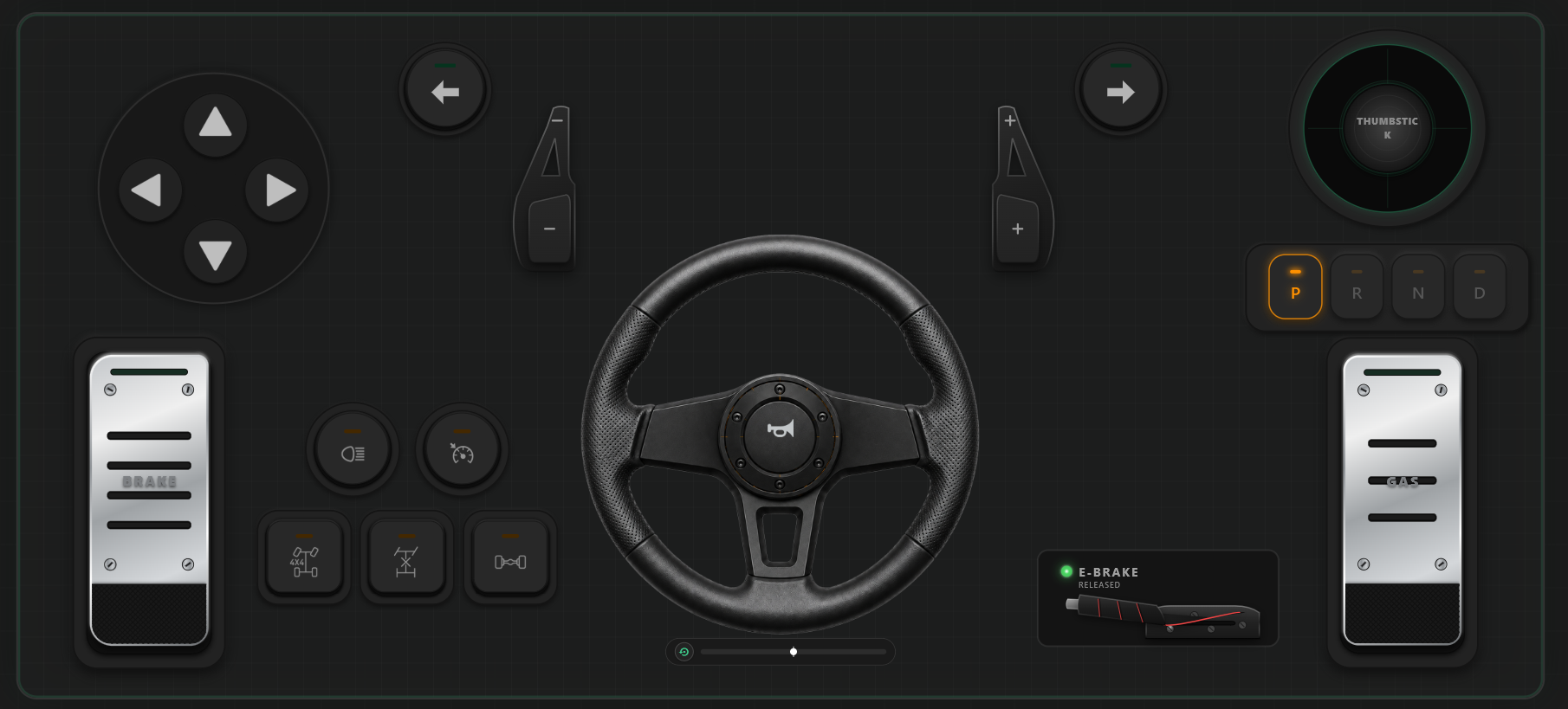
- Inside the mobile app template selector, choose the 900° Racing Wheel Layout.
- Calibrate your neutral center position by holding your phone flat or mounted to a makeshift desk stand, then tap Calibrate Gyro.
#Step 3: In-Game Setup & Control Bindings
Because RojX emulates a native Xbox 360 controller, game setup is remarkably straightforward. Most modern racing games will instantly recognize your phone inputs.
- Launch your preferred racing title (e.g., Assetto Corsa or BeamNG.drive).
- Navigate to Options > Controls / Settings.
- Select your input device as the Xbox 360 Controller or RojX Virtual Controller.
- Bind your steering axis to the phone's tilt axis (Left Stick X).
- Configure your virtual pedals (mapped to triggers or touch buttons on your screen).
Recommended Sensitivity & Linearity Settings
To achieve smooth, realistic handling that mimics a high-end hardware setup, adjust your in-game control modifiers to the following baseline:
| Setting | Recommended Value | Why It Matters |
|---|---|---|
| Steering Linearity | 1.0 to 1.4 | Prevents twitchy movements around the center position. |
| Deadzone (Center) | 0% to 2% | Keeps your steering responsive right off the center line. |
| Steering Sensitivity | 50% - 70% | Balances quick hairpin turns with stable high-speed highway driving. |
| Speed Sensitivity | 10% - 20% | Reduces oversteering at high speeds on straightaways. |
#Pro Tips for Zero-Latency Gameplay
- Use 5GHz Wi-Fi: If you are playing wirelessly, connect your PC and phone to a 5GHz router band instead of a congested 2.4GHz band to keep your latency locked between 3ms and 8ms.
- Opt for USB Connection: For competitive esports racing where every millisecond counts, connect your phone via USB cable for zero wireless interference.
- Experiment with AI Head Tracking: Check out advanced RojX features to integrate smartphone-based head tracking for immersive cockpit views while you race.
#Explore More Setup Guides
Looking to customize your setup for specific titles or use-cases? Check out our other specialized walkthroughs:
- How to Set Up RojX for Euro Truck Simulator 2
- BeamNG.drive Realistic Physics Control with RojX
- Ultimate Guide to Phone-Based Gamepad Emulation on Windows 10/11
#Conclusion
You no longer need to empty your wallet on expensive hardware to experience immersive sim racing. By leveraging your smartphone's high-precision gyroscope and the powerful streaming tech built into RojX, you have a fully functional sim wheel controller for PC right in your hands.
Ready to hit the track? Download RojX for free at rojx.io and start racing in minutes!
Turn your smartphone into a virtual 900° steering wheel right now
No expensive $300 wheel hardware required. Play Forza, Euro Truck Simulator 2, BeamNG, and Assetto Corsa with butter-smooth gyro steering and zero lag over Wi-Fi.
Point your iPhone or Android camera to install.