
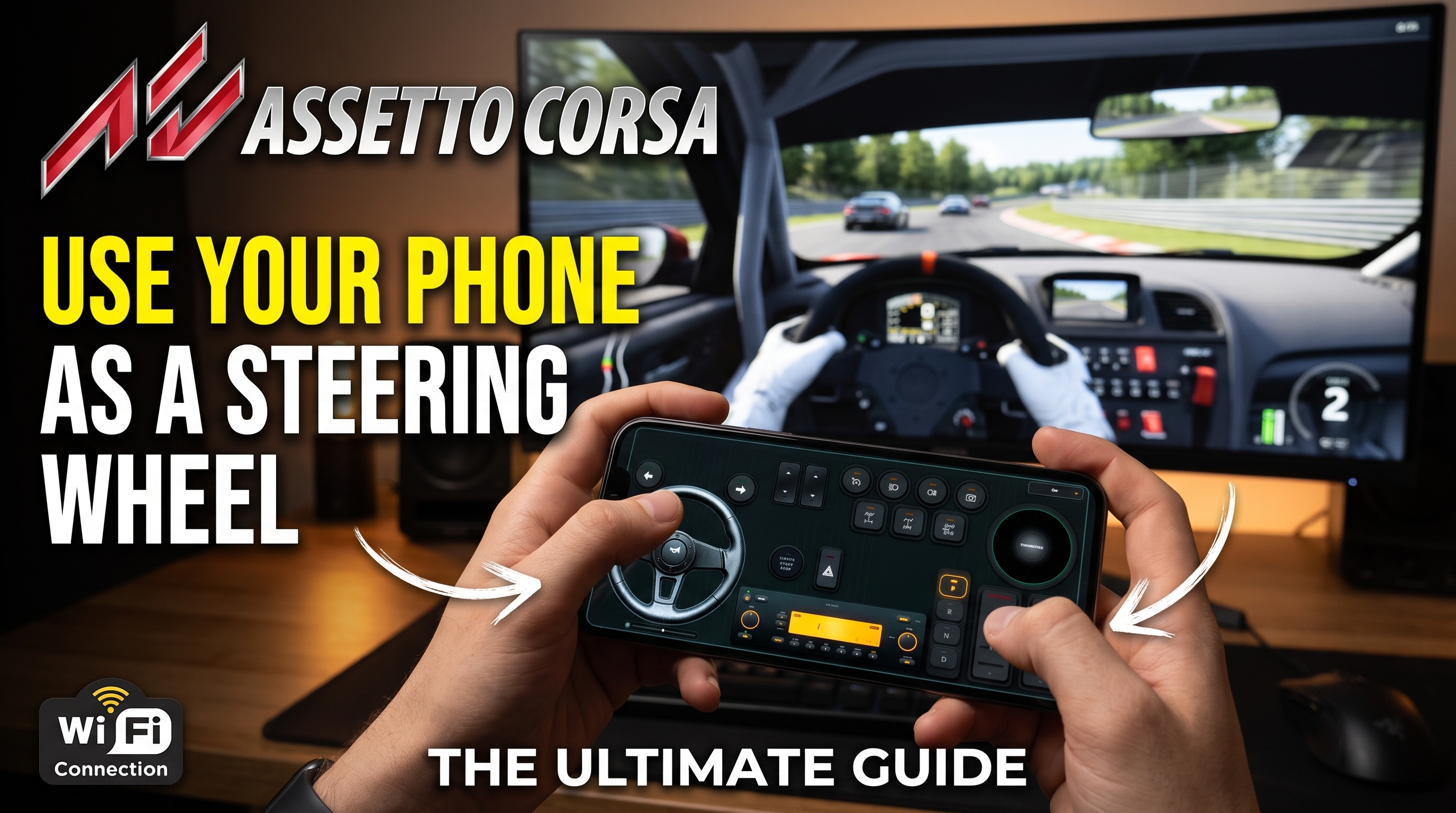



How to Use Phone as Steering Wheel in Assetto Corsa: The Ultimate Guide
Sim racing hardware gatekeeps immersion behind expensive direct-drive wheels, load-cell pedals, and rigid aluminum cockpits. For players eager to experience Kunos Simulazioni's legendary physics engine without dropping hundreds of dollars on peripherals, your smartphone is the missing link. By running RojX on your iOS or Android device, your phone transforms into a low-latency, 900-degree virtual steering wheel and telemetry-ready gamepad that hooks directly into Windows.
Assetto Corsa demands precision. Its tire model calculates dynamic load, slip angles, and surface friction at hundreds of hertz, meaning a crude keyboard or standard gamepad setup results in jerky, uncontrollable twitching. Configuring a smartphone gyroscope requires a careful balancing act of sensitivity curves, deadzones, and network optimization to achieve true analog fidelity.
#Establishing Ultra-Low Latency Connections: USB vs. 5GHz Wi-Fi
Before diving into tire telemetry and steering linearity, you must eliminate input lag. In sim racing, a latency spike exceeding 20ms destroys your ability to catch a rear-wheel slide before the car snaps.
- Download and Install: Grab the Free RojX Windows Host and install it on your Windows 10 or 11 rig. This installs the essential ViGEmBus driver, creating a native virtual Xbox 360 controller instance.
- Network Bandwidth: Open the RojX mobile app on your smartphone. If you are connecting over local Wi-Fi, ensure your PC and phone are connected to a 5GHz router channel (not 2.4GHz) to lock in a blistering 3ms to 8ms polling rate.
- The Hardwired Alternative: For zero packet loss, enable USB tethering on your phone in your device settings. This routes the UDP data stream straight through a physical USB cable, bypassing wireless interference entirely.
⚠️ IMPORTANT: If your Windows Firewall blocks the RojX UDP data stream, create an inbound rule allowing port 27015 (or the custom port specified in your host settings) to prevent erratic steering dropouts during high-speed cornering.
#Calibrating 900-Degree Gyro Linearity and Physics in Assetto Corsa
Assetto Corsa treats gamepads and wheels differently. Because RojX emulates a Microsoft Xbox 360 controller via the ViGEmBus driver, Assetto Corsa's controller profile settings require specific non-linearity tuning to make a 900-degree phone rotation feel like a real steering column.
When you tilt your phone, the device's internal IMU (Inertial Measurement Unit) tracks angular velocity. If your linearity is left at 1.0, the steering will feel hyper-sensitive around the center and uncontrollable at full lock. You need an exponential curve that softens micro-corrections on the straightaways while preserving full lock capability.
Optimal In-Game Controller & Steering Settings for Assetto Corsa
| Parameter/Slider | Recommended Value | Drift/Street Value | What It Controls |
|---|---|---|---|
| Steering Speed | 100% | 100% | Controls how fast the virtual wheel returns to center. Keep at maximum for instant gyro tracking. |
| Steering Gamma (Non-Linearity) | 1.25 to 1.50 | 1.10 to 1.20 | Flattens the center response curve so small phone tilts translate to micro-adjustments. |
| Steering Filter | 0.0 to 0.1 | 0.0 | Smooths raw IMU jitter. Increase slightly if your hands shake, but keep near zero for instant response. |
| Deadzone | 1% to 2% | 1% | Eliminates unintended drift when holding the phone steady on long straights. |
| Speed Sensitivity | 0% | 0% | Reduces steering angle at high speed. Keep at 0% for pure 1:1 gyro mapping. |
#Step-by-Step In-Game Axis Configuration
Once the RojX host is running and connected to your phone, fire up Assetto Corsa and map your virtual inputs inside the options menu.
- Navigate to Options > Controls > Axis.
- Click on the Steering axis box. When prompted, tilt your phone fully to the left or right. Assetto Corsa's input wizard will automatically detect the virtual Xbox 360 left thumbstick X-axis.
- Check the Invert box if tilting left turns the car right. Test the visual steering wheel in the UI preview window to ensure 1:1 synchronization.
- Move to the Throttle and Brake parameters. Assign them to your customized on-screen touch pedal zones in the RojX mobile interface, or map them to secondary triggers if utilizing a hybrid dual-device setup.
- Save your profile as
RojX_Mobile_Wheelso you never have to re-map after updates.
💡 PRO TIP: For an even more immersive cockpit setup, pair your virtual steering wheel with the AI Head Tracking Setup to dynamically look into apexes using your webcam while you steer with your phone.
#Pro Driving Techniques: Mastering Weight Transfer with a Phone Wheel
Driving Assetto Corsa with a smartphone requires a distinct driving style compared to a physical table-mounted wheel. Because your hands lack mechanical resistance and force feedback resistance, you must rely entirely on visual and audio cues to read tire grip.
- Smooth Micro-Inputs: Avoid sharp, jerky wrist movements. The 900-degree rotation range provided by RojX gives you deep fidelity, but slamming the phone from lock to lock will upset the car's weight distribution.
- Trail Braking Discipline: When entering a heavy braking zone like Turn 1 at Monza, roll off the virtual brake touch slider gradually while simultaneously feeding in steering angle. This keeps the front tires loaded with grip.
- Catching Slides: When the rear steps out in a high-horsepower GT3 car or drift build, counter-steer quickly by sweeping the phone in the opposite direction. Trust the auto-centering spring physics built into the RojX host software to help snap the virtual wheel back as you straighten out.
If you want to expand your virtual garage beyond tarmac circuits, check out our guides on how to Turn Phone into PC Gamepad or configure your rig for off-road physics with the BeamNG.drive Physics & Steering Guide.
#Conclusion
Mastering Assetto Corsa with a smartphone steering wheel bridges the gap between casual gaming and serious sim racing. By dialing in your steering gamma, securing a stable 5GHz Wi-Fi or USB connection via RojX, and respecting weight transfer dynamics, you can lay down competitive lap times without breaking the bank.
Turn your smartphone into a virtual 900° steering wheel right now
No expensive $300 wheel hardware required. Play Forza, Euro Truck Simulator 2, BeamNG, and Assetto Corsa with butter-smooth gyro steering and zero lag over Wi-Fi.
Point your iPhone or Android camera to install.