
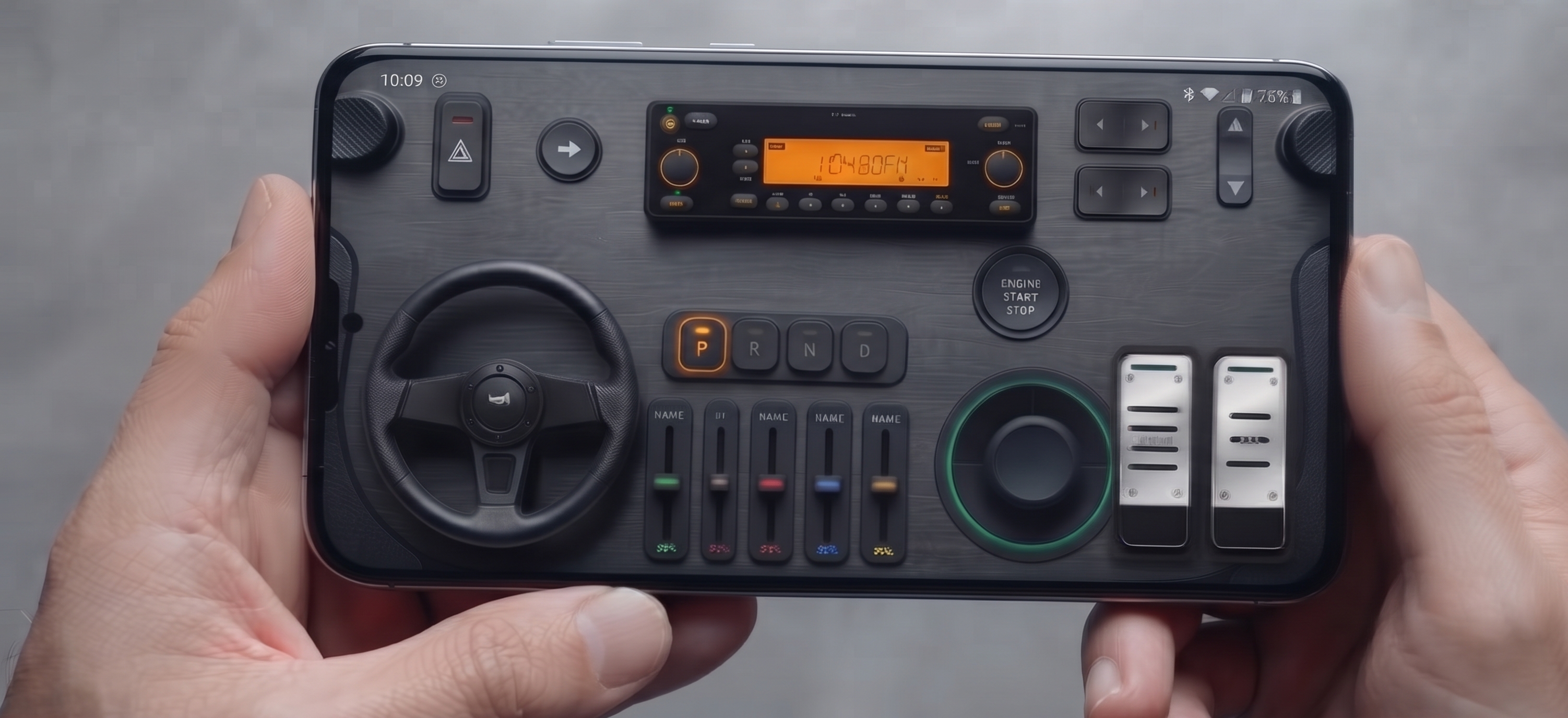



Best Virtual Controller for PC: Turn Your Phone into a Pro 900° Wheel & Gamepad
If you have ever tried driving down the coastline in Forza Horizon 5, navigating a semi through the rain in Euro Truck Simulator 2, or surviving a high-speed collision in BeamNG.drive using a keyboard, you know the frustration. Binary inputs—where a key is either 100% pressed or 0% pressed—destroy vehicle dynamics. Your tires break traction, your vehicle twitches violently, and micro-corrections are impossible.
The traditional fix? Shelling out $300 to $600 for a physical racing wheel and pedal set like the Logitech G29, Thrustmaster T300RS, or entry-level direct drive bases. But bulky racing peripherals clutter your desk, take twenty minutes to clamp down, and demand serious cash.
Modern smartphones contain sophisticated 6-axis IMU sensors (accelerometers and gyroscopes) with update rates exceeding 100Hz. By deploying a dedicated virtual controller ecosystem like RojX, you can turn your existing iOS or Android device into a hyper-responsive, 900-degree PC steering wheel and full-featured gamepad—completely free.
#Hardware Comparison: Keyboard vs. Physical Wheel vs. RojX Virtual Controller
| Feature | Keyboard & Mouse | Entry Hardware Wheel ($300+) | RojX Virtual Controller (Phone) |
|---|---|---|---|
| Steering Input | Binary (0% or 100%) | Analog (Fluid 900° rotation) | True Analog (Full 900° Gyro Rotation) |
| Throttle & Braking | Digital on/off | Analog foot pedals | Dual Touch Analog Sliders / Linear Triggers |
| Desk Clutter | None | Massive desk clamps & cables | Zero (Your standard pocket device) |
| Setup Time | Instant | 10–15 minutes | 10 seconds (Auto-connect via Wi-Fi/USB) |
| Input Latency | 1ms | 2–5ms | 3–8ms (UDP Wi-Fi) / <2ms (USB) |
| Total Cost | $0 | $300 – $700+ | Free to Download |
#Prerequisites
Before initiating your setup, verify you have the following ready:
- Windows PC: Running Windows 10 or Windows 11 (64-bit).
- Smartphone: Any modern smartphone running iOS 14+ or Android 9+ with an integrated gyroscope.
- Local Connection: A standard home Wi-Fi network (5GHz band strongly recommended) or a USB data cable for zero-interference wired mode.
#Step 1: Installing the RojX PC Receiver & Mobile App
Unlike outdated third-party server tools that require manual VJoy patching and driver unsigned overrides, RojX uses an automated installation pipeline backed by the industry-standard ViGEmBus (Virtual Gamepad Emulation Bus) driver.
- Navigate to rojx.io on your PC and download the lightweight RojX Windows Receiver.
- Run the installer. It will configure the virtual Xbox 360 controller bus silently in the background.
- Grab the RojX Virtual Controller app on your phone via the [iOS App Store] or [Google Play Store].
- Launch the RojX PC Receiver. Ensure your Windows firewall allows local UDP communication on the prompted ports.
[Phone (RojX App)]  --- (High-Speed UDP / USB) --->  [RojX PC Host]
                                                          |
                                                  [ViGEmBus Emulation]
                                                          |
                                              [Native Xbox 360 Device]
                                                          |
[Any PC Game / Sim]#Step 2: Connecting and Calibrating the 900° Virtual Wheel Layout
Because RojX communicates using low-overhead UDP socket architecture, network overhead is stripped down to negligible packets, delivering response times between 3ms and 8ms.
- Pairing: Connect your smartphone to the same Wi-Fi router as your PC (or link via USB). Open the mobile app; the host receiver will auto-discover your PC. Tap to establish the handshake.
- Selecting Layout: Switch the layout template from standard "Gamepad" to "900° Steering Wheel".
- Gyroscope Zeroing: Place your phone on a flat surface or hold it in a comfortable horizontal rest position, then tap the Center icon. This establishes your zero-axis equilibrium.
- Configuring Virtual Spring Return: Enable the internal Auto-Centering Physics slider. This software-driven spring forces the virtual steering wheel back to center automatically when you release tension, mimicking genuine power steering rack physics.
#Step 3: In-Game Setup & Control Bindings
Because RojX translates your phone's motion directly into standard Microsoft XInput API calls, 99% of modern PC games detect your phone as a Wired Xbox 360 Controller straight out of the box.
Here is how to map and calibrate the controls in games like Forza, Assetto Corsa, or BeamNG.drive:
- Launch your racing simulator and enter the Settings > Controls / Wheel Settings menu.
- Choose Gamepad / Xbox Controller as your input profile.
- Steering Axis: Ensure steering is mapped to Left Thumbstick X-Axis. When you tilt your phone left and right, the wheel in your virtual cockpit should track smoothly with your physical movement.
- Throttle & Brake: Map the Right Trigger (RT) to Acceleration and Left Trigger (LT) to Deceleration/Reverse. Use RojX's progressive on-screen slider pedals or volume keys for granular, non-binary pedal pressure.
- Handbrake & Shifting: Assign on-screen customizable action buttons to Shift Up, Shift Down, and Handbrake.
#Recommended Sensitivity & Linearity Settings
To bridge the gap between physical wheel hardware and phone-based motion control, input linearity is critical. Apply these baseline values in your game’s advanced controller settings:
| Setting Parameter | Simulators (Assetto Corsa, BeamNG) | Semi-Arcade (Forza, F1 24) | Truck Sims (ETS2, ATS) |
|---|---|---|---|
| Steering Deadzone (Inside) | 0% – 1% | 2% – 3% | 0% |
| Steering Deadzone (Outside) | 100% | 98% – 100% | 100% |
| Steering Linearity | 1.0 (Direct Raw) | 1.1 – 1.2 | 1.0 |
| Steering Sensitivity | 100% | 85% – 95% | 100% |
| RojX Rotation Lock | 900° | 540° – 720° | 900° |
Tip: Increasing Steering Linearity beyond 1.2 dampens micro-tremors around center while preserving swift counter-steering deflection when your tail kicks out.
#Pro Tips for Ultra-Low Latency Gameplay
To extract direct-drive-like responsiveness from your virtual controller, follow these optimization protocols:
- Use 5GHz Wi-Fi: 2.4GHz bands suffer from heavy packet contention from household appliances. A 5GHz band ensures stable sub-5ms UDP packet delivery.
- Enable USB Mode: If you are playing competitive sim-racing lobbies, activate RojX's USB tethered mode. It completely bypasses wireless frequencies for pure, zero-drop frame-perfect inputs.
- Leverage AI Head Tracking: Want full cockpit immersion? Pair the RojX virtual controller with RojX's integrated AI Head Tracking module, which uses your phone's front camera or PC webcam to shift your in-game perspective as you glance toward apexes and side mirrors.
#Related Setup Guides
Take your zero-budget sim rig further with our specialized walkthroughs:
- Euro Truck Simulator 2: Realistic 900-Degree Setup with RojX
- Dialing in Physics: Optimal Drift & Grip Settings for BeamNG.drive
- How to Use AI Webcam Head Tracking Without Buying TrackIR
- Configuring RojX as a Virtual Gamepad for Retro Emulators
#Take the Wheel with RojX Today
Building an authentic sim racing setup no longer requires a $400 peripheral sacrifice. By pairing your phone's high-frequency sensors with RojX's native XInput emulation engine, you get a 900° auto-centering virtual controller that fits right in your hands.
Ready to transform your racing experience? Download the free RojX PC Receiver at rojx.io, grab the companion app on iOS or Android, and hit the track within minutes.
Turn your smartphone into a virtual 900° steering wheel right now
No expensive $300 wheel hardware required. Play Forza, Euro Truck Simulator 2, BeamNG, and Assetto Corsa with butter-smooth gyro steering and zero lag over Wi-Fi.
Point your iPhone or Android camera to install.