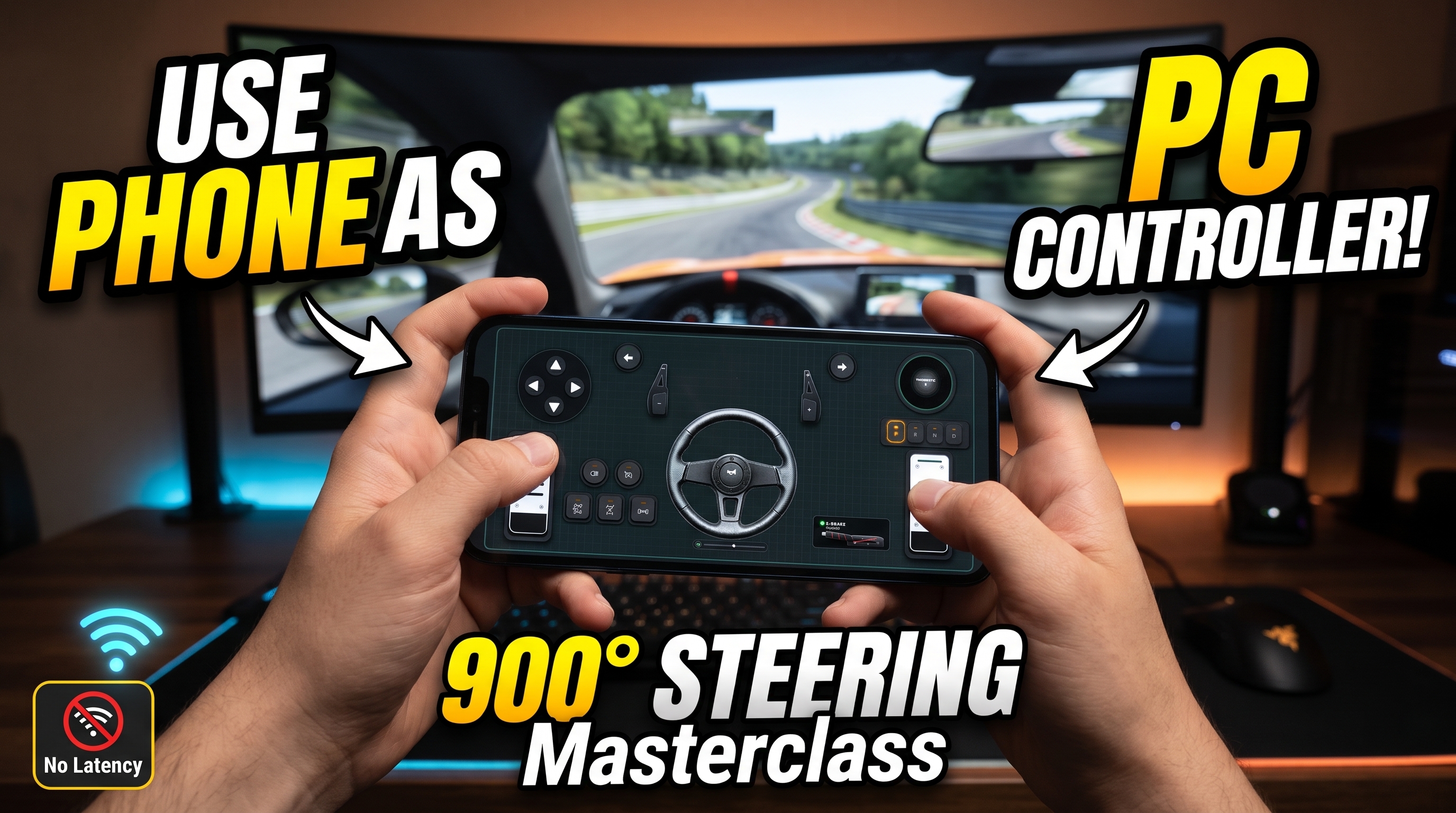



Delivering sub-10ms telemetry response from a mobile gyroscope directly into a physics engine requires balancing raw packet throughput with precise sensor filtering. When you configure your mobile device to bridge the gap between touchscreen hardware and a Windows desktop, you are essentially deploying a high-frequency Inertial Measurement Unit (IMU) right onto your desk. For enthusiasts seeking an immersive racing experience or a versatile gamepad replacement without purchasing expensive proprietary hardware, learning how to turn your phone into a PC gaming controller changes the entire paradigm of budget simulation. By pairing the RojX mobile app with the free RojX Windows Host, your iOS or Android device instantly emulates a native Microsoft Xbox 360 controller while unlocking up to 900 degrees of virtual steering wheel rotation.
#USB Tethering vs. 5GHz Wi-Fi: Eliminating Input Lag
Network jitter is the ultimate enemy of precision steering. Operating a virtual wheel over a congested 2.4GHz home Wi-Fi network introduces packet queuing delays that push latency past 30ms, resulting in sluggish counter-steering and frustrating car oscillations.
To achieve true hardware-grade performance (3ms - 8ms response times), choose one of two primary connection topologies:
- Direct USB Tethering: Connect your smartphone to your PC via a high-speed USB data cable. Enable USB Tethering in your mobile network settings. This entirely bypasses wireless interference, routing UDP packets over a dedicated, high-baud-rate wired tunnel.
- Isolated 5GHz Wi-Fi Subnet: If wireless freedom is mandatory, ensure your PC is hardwired to your router via Ethernet, and your phone is locked exclusively to a dedicated 5GHz Wi-Fi channel (preferably 80MHz channel width with no DFS channel hopping).
Once connected, the RojX Windows host leverages the ViGEmBus kernel-level virtual bus driver to present your mobile inputs to Windows 10 and Windows 11 as a genuine hardware gamepad, bypassing any middleware wrapper overhead.
⚠️ IMPORTANT: Windows Defender or third-party firewalls frequently block inbound UDP traffic on initial boot. Ensure you allow the RojX Windows Host through your private firewall settings, explicitly permitting UDP ports used for telemetry streaming.
#Calibrating 900-Degree Gyro Linearity for Precision Cornering
Raw gyroscope data is inherently noisy. Without proper mathematical curve manipulation, tilting your phone feels either impossibly twitchy or like driving a boat. To replicate the heavy, progressive resistance of a physical Direct Drive wheel, you must configure three distinct telemetry parameters inside the RojX host utility:
- Zero-Deadzone Gyro Sensitivity: Set an initial deadzone of 1.5% to 2% to absorb microscopic hand tremors when holding the phone straight on long highway stretches.
- Non-Linearity Response Curves: Apply a non-linearity coefficient of 1.25 to 1.45. This flattens the sensitivity curve near the center axis for micro-corrections while exponentially scaling up rotation output as you approach full lock.
- Auto-Centering Spring Physics: Emulate mechanical steering rack return forces by enabling the software center spring. This snaps the virtual controller back to zero when telemetry inputs drop to neutral.
Gyro Steering Sensitivity & Curve Presets
| Driving Style | Steering Range | Sensitivity % | Non-Linearity | Center Spring Strength |
|---|---|---|---|---|
| Arcade Street Racing | 360° | 110% | 1.00 (Linear) | Low (30%) |
| Sim Racing (GT3 / Track) | 540° | 90% | 1.25 (Progressive) | Medium (60%) |
| Heavy Truck Simulation | 900° | 75% | 1.50 (Deep Curve) | High (85%) |
| Off-Road Rally | 720° | 100% | 1.15 (Balanced) | Medium-Low (45%) |
For heavy haulage titles like Euro Truck Simulator 2, setting your rotation lock to a full 900 degrees transforms the handling profile; consult our deep-dive Euro Truck Simulator 2 Setup Guide to map multi-template layouts seamlessly.
💡 PRO TIP: When configuring vehicle physics in complex sandboxes, reference our BeamNG.drive Physics & Steering Guide to fine-tune steering speed limits and force feedback damping for ultimate realism.
#Integrating Touch Pedals and AI Head Tracking
Steering is only half the battle. A complete setup requires proportional throttle, braking, and clutch management. RojX solves this by allowing you to overlay customizable touch button zones onto your smartphone screen alongside your gyro telemetry.
- Virtual Pedals: Split your screen layout to reserve the lower display tiers for sliding analog bars or pressure-sensitive touch zones acting as accelerator and brake pedals.
- Multi-Template Switching: Instantly swap between a racing wheel interface, a flight stick configuration, and a traditional gamepad layout on-the-fly using the RojX template manager.
- AI Webcam Head Tracking: Pair your mobile setup with the RojX AI Head Tracking Setup to tie your in-game cockpit camera movement directly to your natural head rotations, eliminating the need for expensive hardware trackers.
#Troubleshooting Common Connection and Drift Issues
Even robust software suites encounter edge cases. Use this matrix to diagnose unexpected behavior during race setups:
- Symptom: The virtual steering wheel drifts slowly to one side while resting flat.
- Solution: Gyroscope bias accumulation occurs due to thermal micro-shifts in the phone's IMU. Place the phone flat on your desk and tap 'Reset Gyro Zero' in the RojX app dashboard.
- Symptom: Windows fails to recognize the emulated Xbox 360 controller.
- Solution: Verify that the ViGEmBus driver is installed correctly on your system. Reinstall the host software package if the virtual bus device is missing from Windows Device Manager under 'System Devices'.
- Symptom: High stutter or frame drops during packet transmission.
- Solution: Disable power-saving modes on both your mobile operating system and Windows network adapter to prevent CPU core parking during telemetry polling.
Turn your smartphone into a virtual 900° steering wheel right now
No expensive $300 wheel hardware required. Play Forza, Euro Truck Simulator 2, BeamNG, and Assetto Corsa with butter-smooth gyro steering and zero lag over Wi-Fi.
Point your iPhone or Android camera to install.